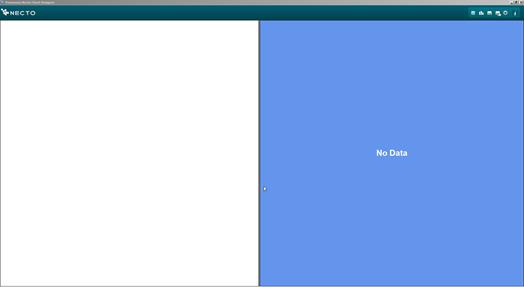
The Chart Designer is used to define property settings for the different elements of a chart and save the definitions in a chart template. You can then apply these properties to charts by applying the chart template.
The Chart Designer is an external utility that resides on your Necto server.
To start the Chart Designer:
1. Run the ChartDesigner application file from the installation folder. The Chart Designer window opens.
2. Click the Settings  button on the toolbar, and in the Necto Server Settings dialog box enter the name of the Necto server to connect to.
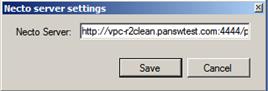
Click Save.
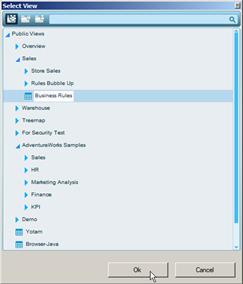
3. Click the Select View  button, and from the Select View dialog box, select any view. Click OK.
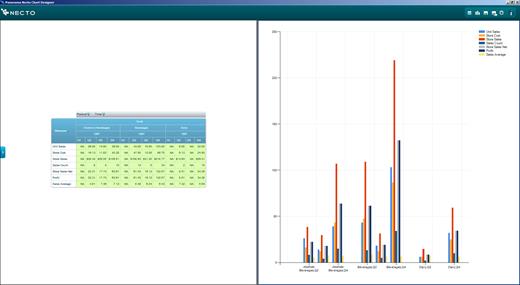
The grid and the chart of the selected view display on the two sections of the Chart Designer window.
To create a chart template:
1. Right-click in the chart area and select Properties.
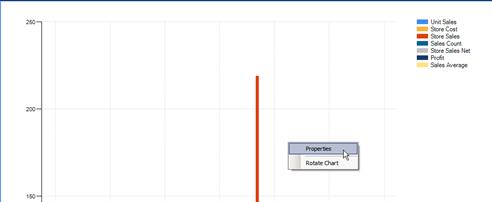
The properties dialog box and the chart preview pane display.
2. In the left pane of the dialog box, select a chart element (e.g. title, legend, series) to display its properties on the right pane.
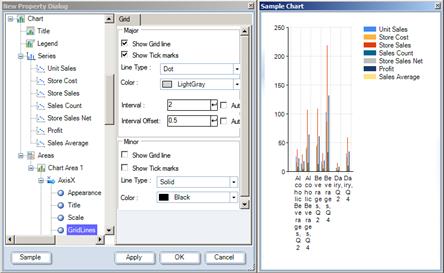
3. Change the settings as necessary. Hover over a property to see a description for that property at the bottom of the pane.
As you define properties, the results display in the preview pane (Sample Chart). If the preview pane is closed, click the Sample button to open it.
Use the Apply button to apply the new property settings to the chart currently displayed in the Chart Designer.
4. Click OK.
5. Click the Save Chart Template As  button on the toolbar.
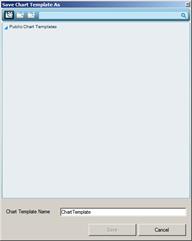
6. Click on the folder where you want to save the workboard.
To save it as a private template, click the Private Templates  button. If your private templates are organized in folders, click the folder where you want to save the current template.
You can create a new folder by clicking the arrow and selecting New Folder.
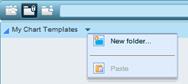
To save it to another user’s folder (if you have permission), click the User’s Templates  button.
7. Type a Chart Template Name.
8. Click Save to save the template.
To modify an existing chart template:
1. Click the Open Chart Template  button on the toolbar.
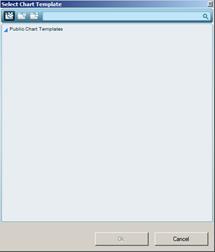
2. Choose the template and make the relevant changes.
3. Click the Save Chart Template  button to save the modified template.