 button opens the Reorder dialog box.
In addition to the standard buttons, the title bar of the navigation component contains option buttons for redesigning the layout of the component contents.
Clicking the Reorder button opens the Reorder dialog box.
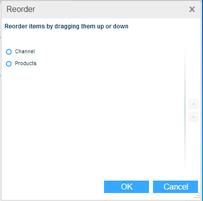
Reorder the parameters by dragging them up or down. Click OK.
Clicking the Title Location button displays a location map for changing the position of the parameter titles. By default, the titles are positioned at Top Center.
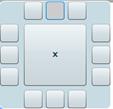
Clicking at the center hides the parameter titles.
Click on the location where you want the titles to appear. For example, clicking on Left Center will display the titles as shown in the following example.
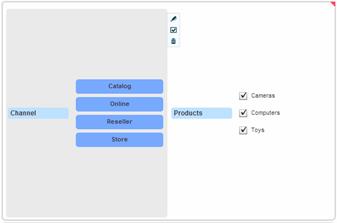
Parameters appear in the navigation component in the order they have been defined in the Navigation Designer. Clicking the Change Orientation  button displays the parameters side-by-side.

Clicking again returns the parameters to the original orientation.
When you point to a parameter in the navigation component, options buttons appear to the right of that area. These buttons apply to the selected parameter.
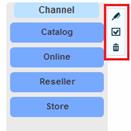
The Edit  button opens the Navigation Designer dialog box directly with the selected parameter’s definition. You can edit the parameter and click OK to apply the changes.
The Hide  button removes the parameter from the component. This is the same as disabling the parameter in the Navigation Designer. To return it, you need to open the Navigation Designer by clicking the Edit button on the component’s title bar and reselect the parameter, and click OK.
The Delete  button removes the parameter from the component and deletes it from the Navigation Designer.